How to Share Your Half Marathon on Instagram
13.1 miles is a big deal. Whether it's your first half, a PB or a race you trained months for, here's how to turn your result into a post that does it justice.
Last updated
See it in action
-
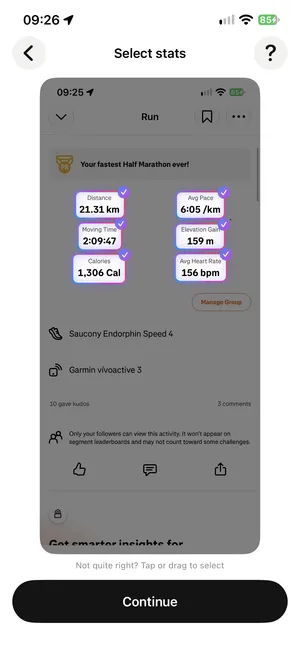
01 Import a screenshot of your half and PacePost picks out every stat on it.
-
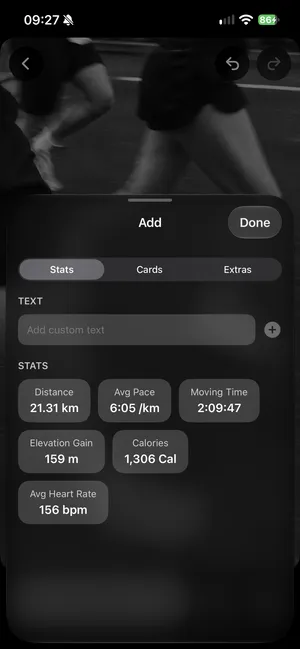
02 Tap the stats you want, and add your own text if you like.
-
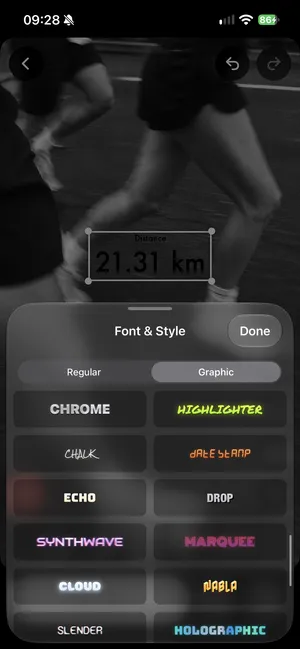
03 Pick a font. The Graphic tab has the bolder, more playful styles.
-
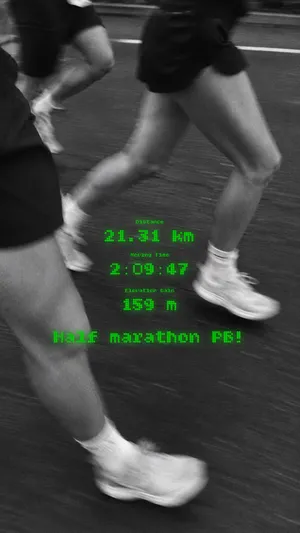
04 Move each stat where you want it, then save or share straight to your Story.
Where to find your half marathon result
After a half, your stats usually end up in a few places:
- The race app or results page. Search by name or bib number. Your official chip time, position and often a 10K split will be there, usually within a few hours.
- A finisher email. Most organised halves send one. It's a quick way to grab your official time without hunting through a results site.
- Strava, Garmin Connect, Apple Fitness or Nike Run Club. If you ran with a watch, this is where you'll find your pace, splits, heart rate and elevation.
- A treadmill screen. Ran it indoors? Fair play. Take a photo of the screen before it resets.
Your watch and the official result won't always match. GPS often reads a little long over 21 km, so if you want the "real" number, use your chip time.
Which stats to show
A half marathon has a lot of numbers. You don't need all of them. Most people want to see:
- Your finish time. Make it the biggest thing on the post. It's the number everyone will look for.
- Your average pace. Especially if you were chasing a target, like 5:40/km for sub 2.
- The distance. 21.1 km or 13.1 miles. Either works, but pick the one your followers will recognise.
- A split or two. Twenty one kilometre splits is too many for one post. Show your two halves, or your 5K splits, especially if you finished strong.
If it's a PB or your first half, say so on the post. "First half" or "Sub 2" tells the story in two words.
But with PacePost, you're free to show whichever stats you want, however you want.
Why not just use the app's share template?
Strava, Garmin, Nike Run Club and Apple Fitness all have their own share templates, and they do the job. The trouble is that on a big race weekend, half your feed is the same card with slightly different numbers on it.
PacePost gives you more room to make it yours. It reads the stats from a screenshot or Apple Health, then you pick the ones you want, put them over your own photo and style them however you like. It works the same way with Strava, Garmin, Apple Fitness and Nike Run Club.
Tips for a great half marathon post
- Use a race photo. Crossing the line, holding your medal or a slightly broken post-race selfie all work. Official race photos often take a few days to arrive, so it's fine to wait for a good one.
- Keep the stats off faces. Put them over sky, road or a plain background so the numbers and the photo are both easy to see.
- Tell the story with your splits. If you ran a negative split, show your two halves side by side. That's the bit other runners will notice.
- Match the font to the mood. A bold font suits a PB. Something lighter suits a fun run or a first half where finishing was the goal.
- Try a transparent overlay. Export just the stats and layer them over a photo or video in your Story. See our transparent overlay guide.
Half marathon caption ideas for Instagram
Your stats show what you did. The caption is where you say how it felt. A few ideas:
For your first half
- 13.1 done
- Half marathoner. Has a nice ring to it
- Twelve weeks of training for this medal
- Halfway to a marathon. Don't ask me yet
For a new PB
- Sub 2, finally
- The long runs paid off
- New PB and very sore legs
For race day
- Mile 10 was a dark place
- Thank you to everyone who cheered
- Went out too fast. Regret nothing
For a training run
- Long run Sunday
- 21.1 km and a big breakfast
- Slow and steady still counts
Keep it short. Your time is already on the photo, so the caption doesn't need to repeat it.
Post your half marathon result with PacePost
Take a screenshot of your half marathon. It can be from your race results page, finisher email, Strava, Garmin, Apple Fitness, Nike Run Club or a treadmill screen. If you want, you can import your run from Apple Health instead.
Open PacePost and import the screenshot. PacePost finds your stats on your phone, with no workout data uploaded.
Tap the stats you want to show. Your finish time, pace and distance are a good place to start.
Choose a photo for the background. Then pick a font and colour, and move the stats where you want them.
Save the image in high resolution, or share it straight to your Instagram Story.
Frequently asked questions
- Use your chip time if you want your official result. Watches often read a little over 21.1 km because of GPS drift and not running the racing line, so your watch pace can look slightly different. Either works in PacePost. Just screenshot whichever you want to show.
- Yes. Screenshot your result from the race app, results page or finisher email. PacePost reads your time from the image so you can turn it into a post.
- Screenshot your splits screen and PacePost will find each one. Then pick just a few to show, like your two halves or your 5K splits, rather than all twenty one.
- No. There is no login and no account to connect. Your stats are read on your phone, so your workout data never leaves your device.
- Yes, PacePost is free to download and use. Free posts include a small watermark. PacePost Premium removes the watermark and unlocks extra fonts.
Should I use my chip time or my watch time?
Can I share my official race result?
How do I show my splits without cluttering the post?
Do I need to connect my account?
Is PacePost free?
Your stats deserve better than a screenshot
Download PacePost for free and turn your next workout into something worth sharing.
Free on the App Store. Requires iOS 18+.